FiveM Discord Rich Presence (RPC) Setup for QBCore and QBox
Show your server name, logo and live player count in every player's Discord status. Full FiveM Discord rich presence setup for QBCore, QBox and Meteo V2 Package.
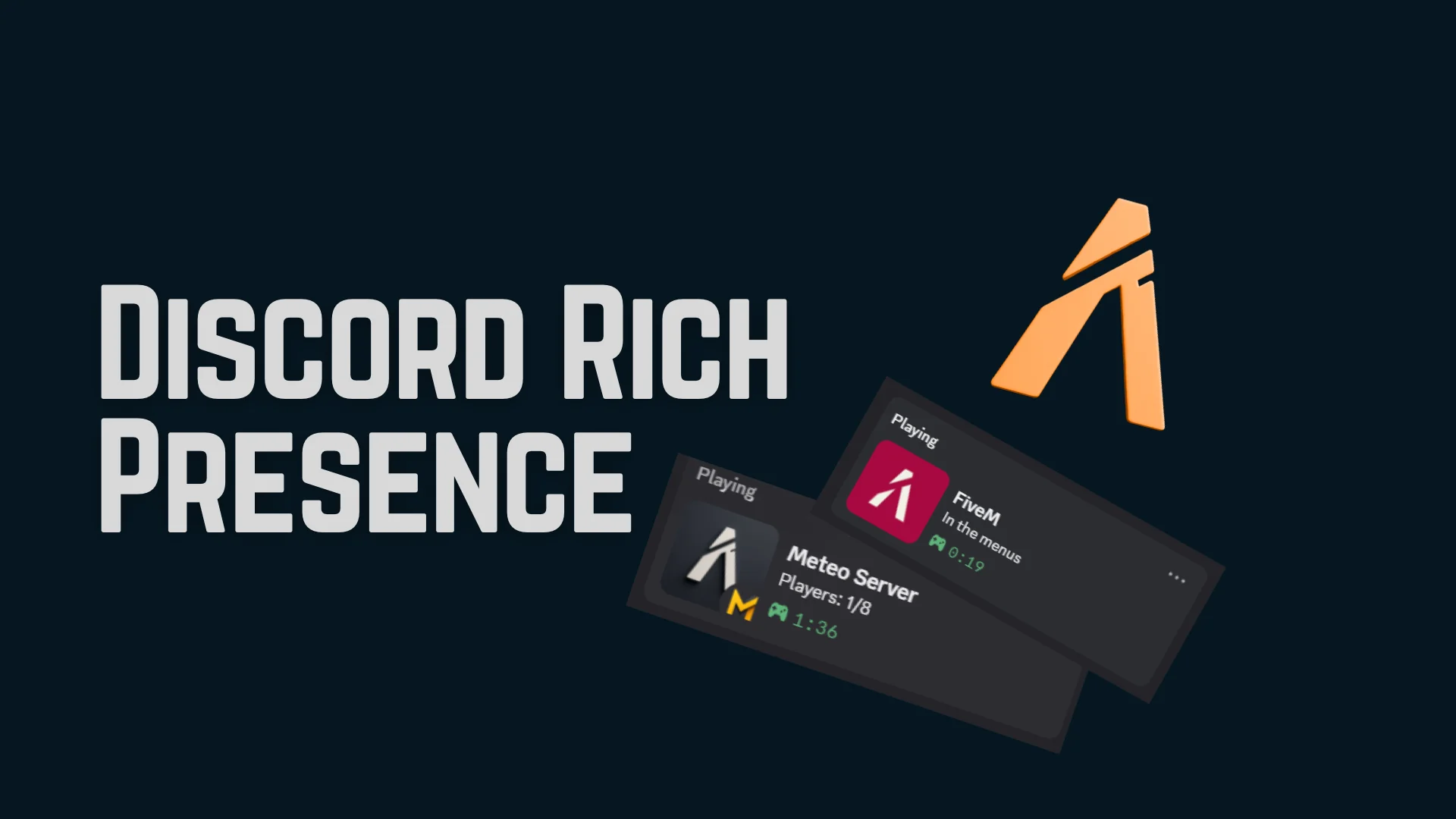
Discord Rich Presence lets your players show they are playing on your server directly in their Discord status. It displays your server name, custom logo, player count, and even clickable buttons. Setting it up takes about 10 minutes.
Quick Answer: To set up Discord RPC for your FiveM server, create a Discord application at discord.com/developers/applications, copy the Application ID, upload your server logo as a Rich Presence asset, then add the Application ID and icon key names to your server config. The exact config location depends on your framework.
What Is Discord Rich Presence
Discord Rich Presence (RPC) is a feature that shows what game or activity a user is currently doing. For FiveM servers, it replaces the default "Playing FiveM" status with your server's name, logo, and additional info like player count.
When a player joins your server, their Discord profile shows your server branding instead of the generic FiveM logo. This is free advertising. Every player on your server is showing your brand to everyone on their Discord friends list.
What You Need Before Starting
Before you set up Discord RPC you need three things. A Discord account, access to the Discord Developer Portal, and access to your server config files.
The setup process has two parts. First you create and configure a Discord application. Then you add the application details to your server config. The first part is the same regardless of what framework you use. The second part depends on whether you run QBox, QBCore, or the Meteo V2 Package.
Step 1: Create a Discord Application
Go to discord.com/developers/applications and click "New Application." Give it your server name. This is the name players will see in their Discord status so use your actual server name, not something generic.
Once created, you will land on the General Information page. Copy the Application ID. You will need this in your server config later. Keep this page open.
Step 2: Upload Your Server Logo
In your Discord application, go to the Rich Presence tab, then click Art Assets. Click Add Image(s) and upload your server logo.
Give each image a key name. For example "server_logo_large" for your main logo and "server_logo_small" for a smaller icon. These key names are what you reference in your server config. Remember them exactly as you typed them.
Recommended icon size is 1024x1024 pixels. Discord needs a few minutes to process new icons before they show up in the rich presence.
Step 3: Add to Your Server Config
This step depends on your framework.
For QBox Servers
The Discord RPC config is inside qbx_core/config/client.lua. Open this file and find the discord section. Paste your Application ID and update the icon names to match the key names you set in Step 2.
The config also lets you set the large and small image text that appears when someone hovers over the icons in Discord. You can customize button text and URLs or remove buttons entirely by editing the discord.lua file in qbx_core.
For the full QBox guide with screenshots, check the QBox Discord RPC documentation.
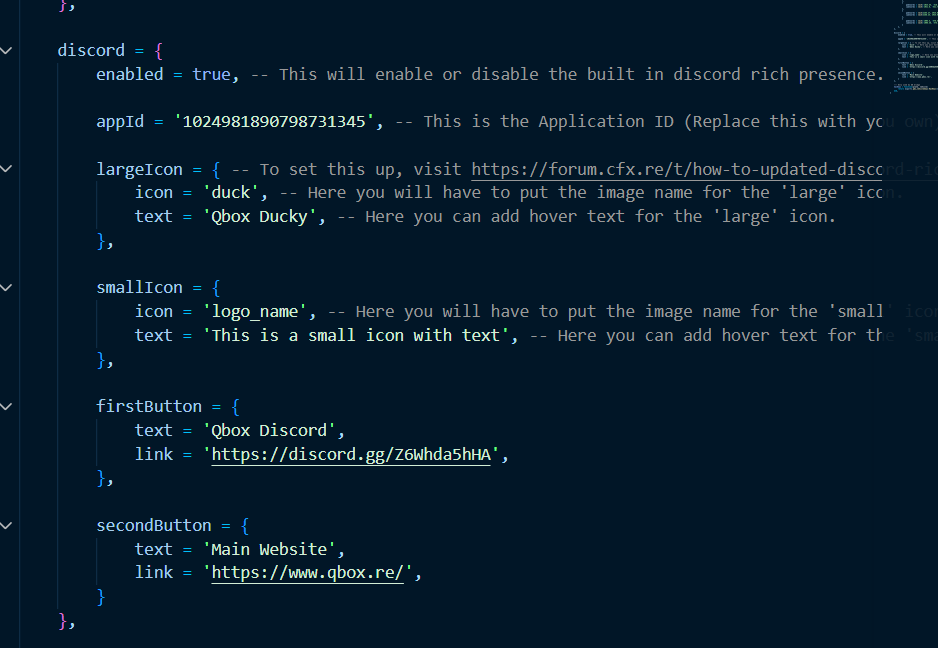 QBox qbx_core/config/client.lua showing the discord section with applicationId and icon key fields to update.
For Meteo V2 Package
If you are running the Meteo V2 Package, Discord RPC is configured through a single file. Open your meteo.cfg and add these lines:
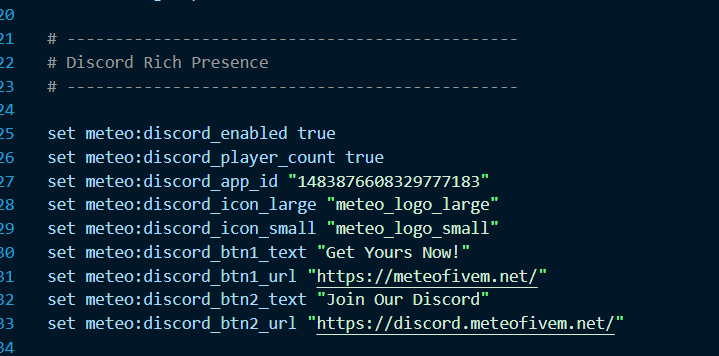 Meteo V2 Package meteo.cfg with the Discord RPC convars set: discord_enabled, discord_player_count, discord_app_id, discord_icon_large, and discord_icon_small.
Replace the values with your actual Application ID and icon key names. Save the file and restart your server. That is it. One config file, no code editing.
You can also disable the player count or turn off Discord RPC entirely from the same config. Full reference is in the Meteo V2 Package Discord RPC guide.
For QBCore Servers
QBCore handles Discord RPC through qb-smallresources. Open qb-smallresources/config.lua and find the Config.Discord section. Update the Application ID and icon key names there. The setup process is similar to QBox but in a different file location.
Step 4: Restart and Test
Save your config changes and restart your server. Join your server and check your Discord profile. You should see your server name, custom logo, and player count showing in your status.
If the icons do not appear, wait a few minutes. Discord sometimes takes time to process new Rich Presence assets. If it still does not show, check that your Application ID is correct and that the icon key names match exactly what you uploaded.
Common Issues
RPC not showing up at all. FiveM has a setting that lets players disable Discord Rich Presence. If you are testing and it does not show, check your FiveM settings and make sure Discord Rich Presence is enabled. This is a client side setting, not a server issue.
Icons not displaying. Make sure the key names in your config match exactly what you named them in the Discord Developer Portal. They are case sensitive.
Wrong server name showing. The name shown in Discord is the name of your Discord application, not anything in your config. Change it in the Discord Developer Portal under General Information.
Player count not updating. Make sure player count is enabled in your config. For Meteo V2 Package, set meteo:discord_player_count to true. For QBox and QBCore, check the relevant config option in the discord config file.
Why You Should Set This Up
Discord RPC is one of the easiest marketing tools for your FiveM server. Every player becomes a walking advertisement. Their friends see your server name and logo, get curious, and ask about it. It costs nothing and takes 10 minutes to set up.
If you are running a serious RP server, custom Discord RPC is expected. Servers without it look unfinished. Servers with it look professional.
Next Steps
Once your Discord RPC is set up, check out these related guides:
- Meteo V2 Package full documentation for more customization options
- QBox Discord RPC documentation for QBox specific details
- How to customize your Meteo V2 Package for other one config settings
Sources
- QBox Discord Rich Presence Documentation
- Meteo V2 Package Discord RPC Guide
- Discord Developer Portal
- Based on direct development experience setting up Discord RPC for FiveM servers
Frequently Asked Questions
No. Creating a Discord application and using Rich Presence is completely free.
Yes. Most frameworks support adding up to two buttons with custom text and URLs. You can link to your Discord server, website, or server connection page.
No. The server handles everything. Once you configure it, every player who joins your server will automatically show your custom rich presence in their Discord status.
Yes, depending on your framework. Some frameworks support showing the player's current job or activity in the Discord status text. Check your framework's Discord RPC documentation for details.
Discord recommends 1024x1024 pixels for Rich Presence images. Both the large and small images should be this size. Discord will resize them automatically.
No. FiveM has a client side setting that lets players disable Discord Rich Presence. If a player has this turned off, your custom RPC will not show for them. This is not something you can override from the server side.
Related posts
Have questions about this post?
Ask on Discord