FiveM Banner Size (1865x108) and Free Animated Banner Maker
The recommended FiveM server banner size is 1865x108 pixels. Here is where that number comes from, plus how to make an animated one free in 10 minutes.
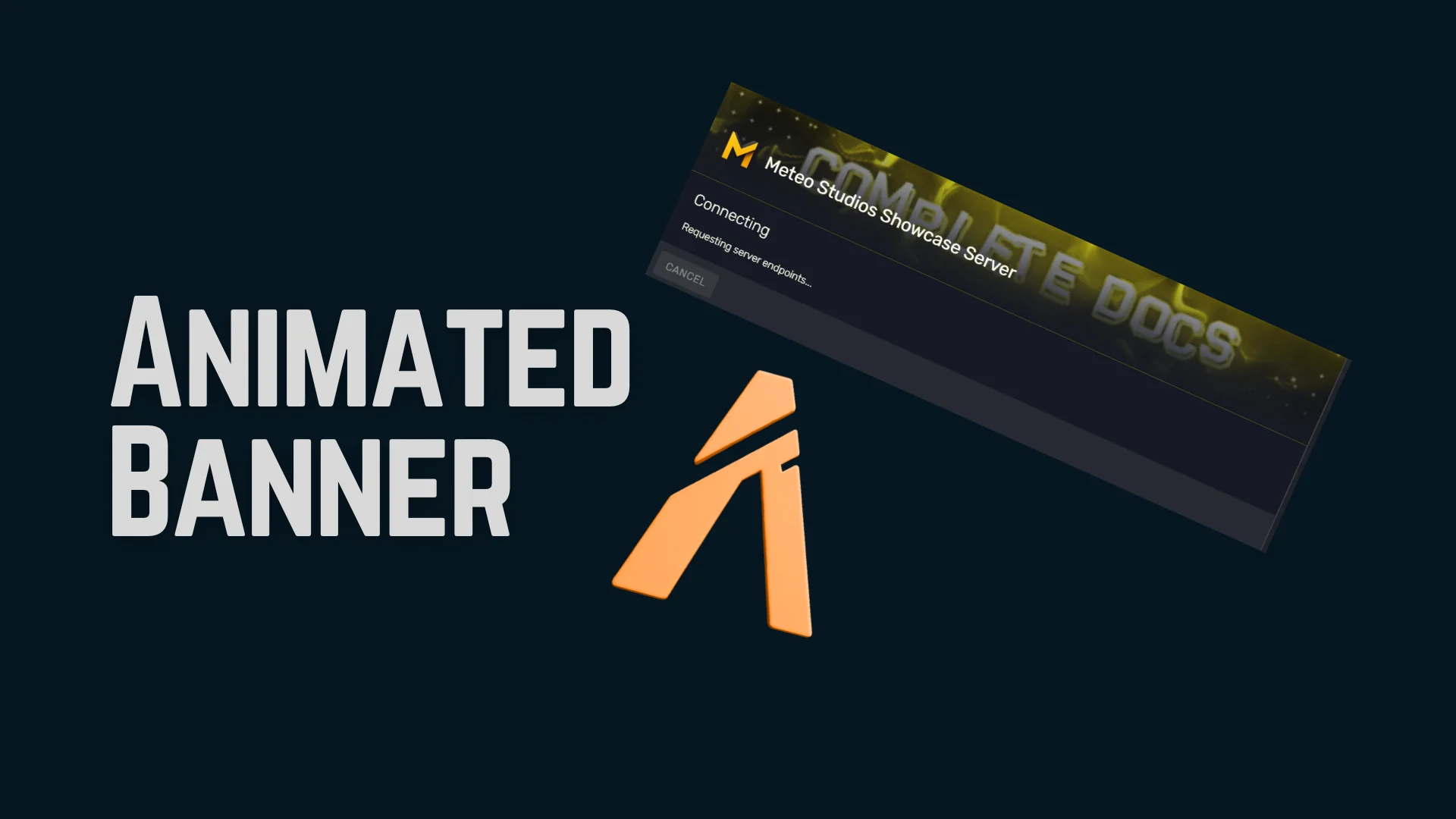
 Example animated FiveM server banner - Meteo V2 Package
Quick Answer: The recommended FiveM server banner size is 1865x108 pixels. That is the size the original cfx.re community guide specifies and what most banner generators output by default. Use
sets banner_detailfor the server list image andsets banner_connectingfor the loading screen - both accept an animated GIF.
Your FiveM server banner is the first thing players see in the server list and on the connecting screen. A clean animated banner makes your server look professional and helps you stand out without paying a designer. This guide walks you through making one for free, hosting it properly, and adding it to your server.cfg.
Quick Answer: To make an animated banner for your FiveM server, go to auto.creavite.co/animated-banners, pick a template, customize the text and colors, and download the GIF. Upload it to an image host that gives direct links like ImgBB, copy the URL, then add
sets banner_detailandsets banner_connectinglines to your server.cfg with the GIF URL. Restart your server. The whole process takes under 10 minutes.
What Are FiveM Server Banners?
FiveM servers use two banner images. The details banner shows in the FiveM server list when players are browsing. The connecting banner shows on the loading screen when a player joins. Both are set inside your server.cfg file using the sets banner_detail and sets banner_connecting convars.
You can use any image format the browser can load. That includes PNG, JPG, and GIF. Animated GIFs work, which is what makes free tools like Creavite so useful. You get motion graphics on your banner without touching After Effects.
The recommended banner size for FiveM is 1865x108 pixels, based on the original cfx.re forum guidelines. Most banner generators output the correct size automatically.
FiveM banner sizes at a glance
The details banner size and the connecting banner size are the same, so one 1865x108 file works for both convars. Only where they show differs.
| Banner | Convar in server.cfg | Where it shows | Size | Formats |
|---|---|---|---|---|
| Details banner | sets banner_detail | Server list, under your server name | 1865x108 px | PNG, JPG, GIF |
| Connecting banner | sets banner_connecting | Loading screen while a player joins | 1865x108 px | PNG, JPG, GIF |
Why an Animated Banner Matters
A static banner is fine. An animated banner reads as more effort. When two servers sit next to each other on the FiveM server list and one of them has a moving banner with your server name and key features, players are more likely to click it. The list is crowded and you need every edge you can get.
This matters more for smaller servers. Established communities can survive on word of mouth. New servers need to look the part from the first impression.
Step 1: Open the Creavite Animated Banner Maker
Go to auto.creavite.co/animated-banners. Creavite is a free in-browser tool that generates animated GIF banners using pre-built motion graphics templates. No signup, no watermark on free templates.
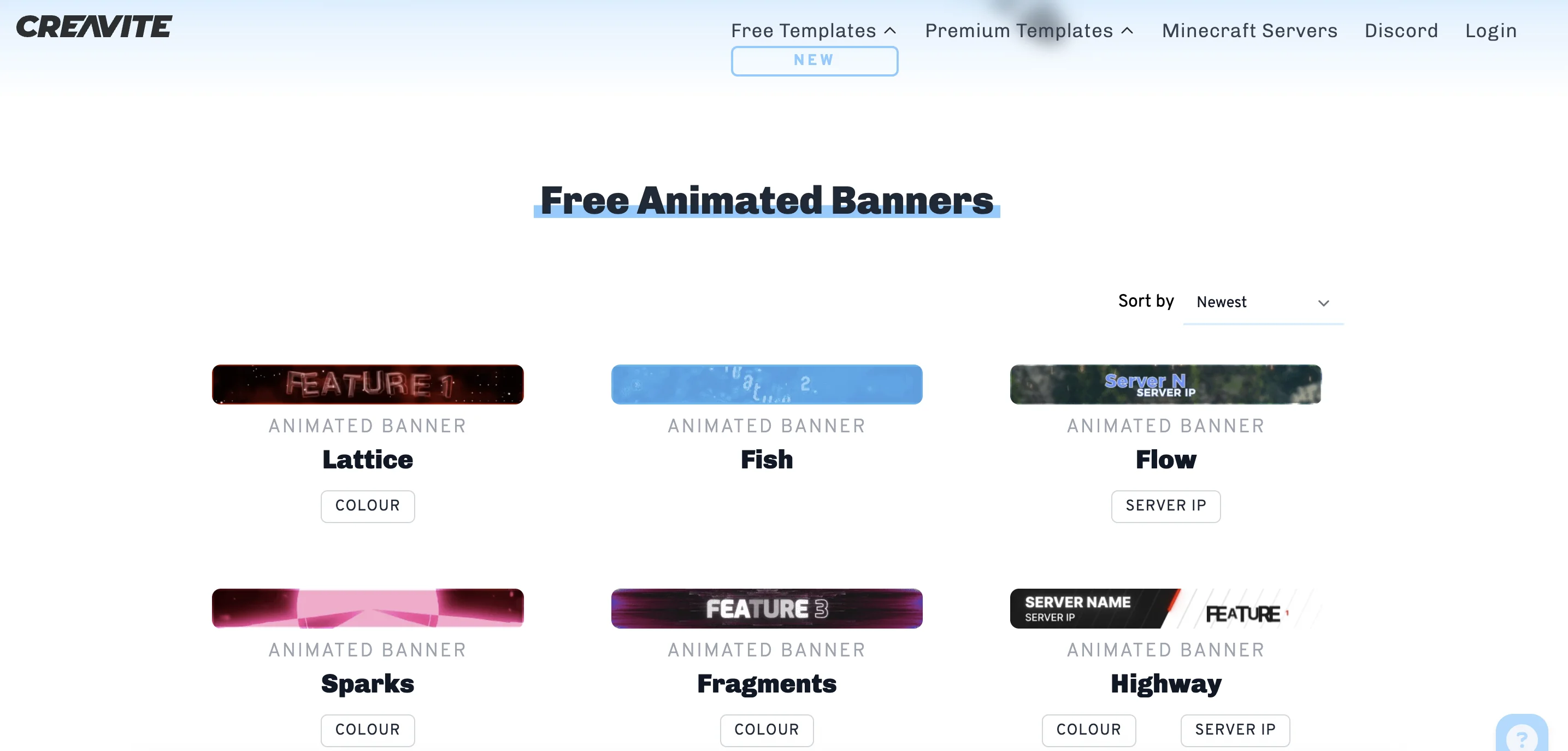 Creavite animated banner maker homepage with template gallery
Browse the templates. Each one shows a live preview so you can see exactly how the animation looks before picking one. There are dozens of free templates and a premium section if you want more exclusive designs.
Pick one that matches your server vibe. A heist-themed RP server probably wants something darker and more cinematic. A drift or racing server can lean into bright colors and faster animations.
Step 2: Customize Your Banner
Once you pick a template, you can edit:
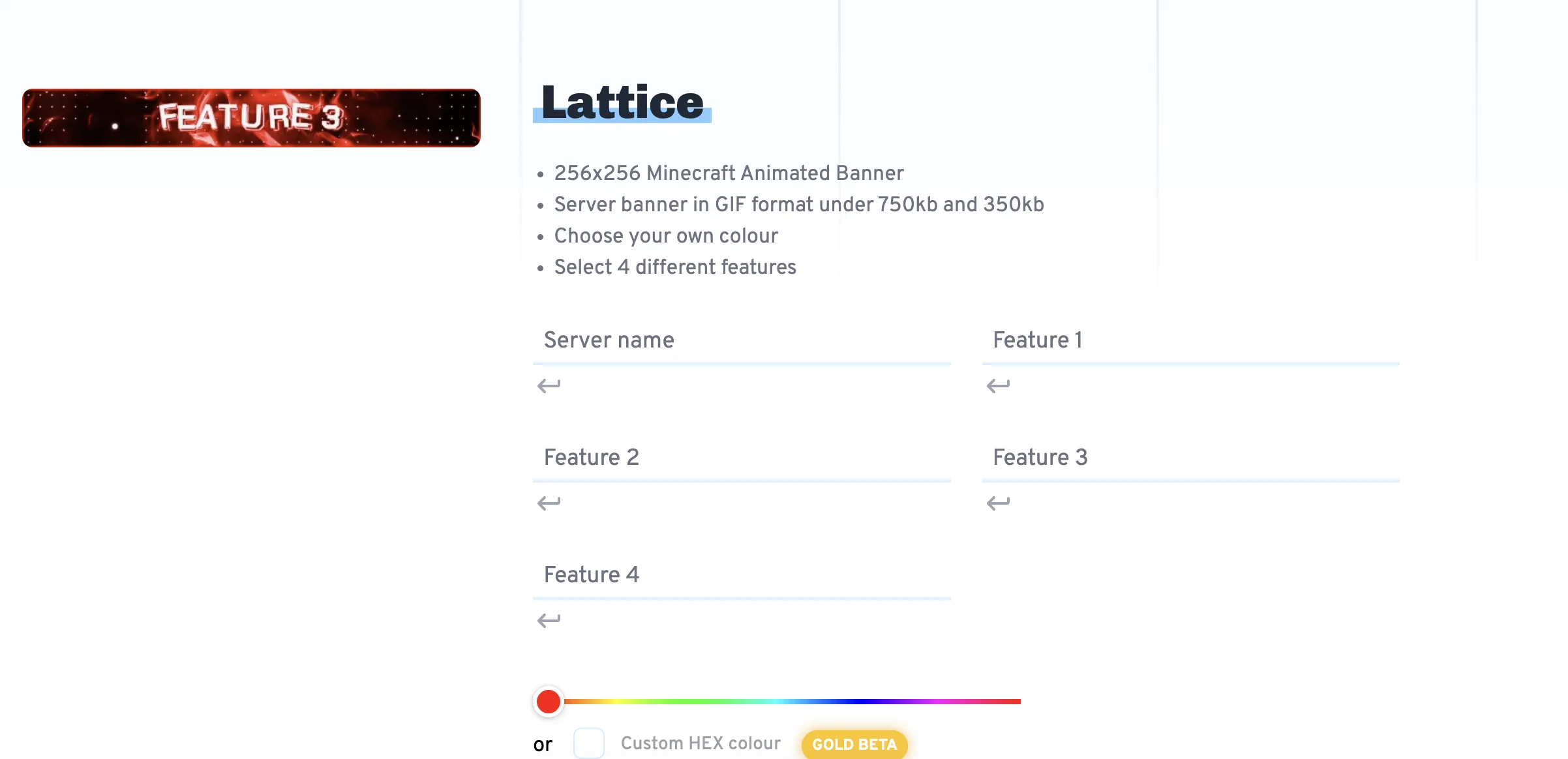 Creavite editor showing customization options for server name, colors and effects
- Server name that appears on the banner
- Tagline or features depending on the template
- Colors for backgrounds, accents, and text
- Effects like glow or glitch on certain templates
Keep your text short. Long server names get crammed in and look bad at small sizes. Two or three short words always read better than one long phrase. Test how it looks at FiveM server list size, which is small on most monitors.
Step 3: Render and Download the GIF
Hit the render button. Creavite processes the banner on their servers and gives you a downloadable GIF file. This usually takes under a minute.
Save the file somewhere you can find it. Rename it to something descriptive like myservername-banner.gif. You will need this file for the next step.
Step 4: Host Your Banner
You cannot link to the GIF on your computer. FiveM needs a public URL that loads the image directly. You need to upload your GIF somewhere that gives you a direct image link.
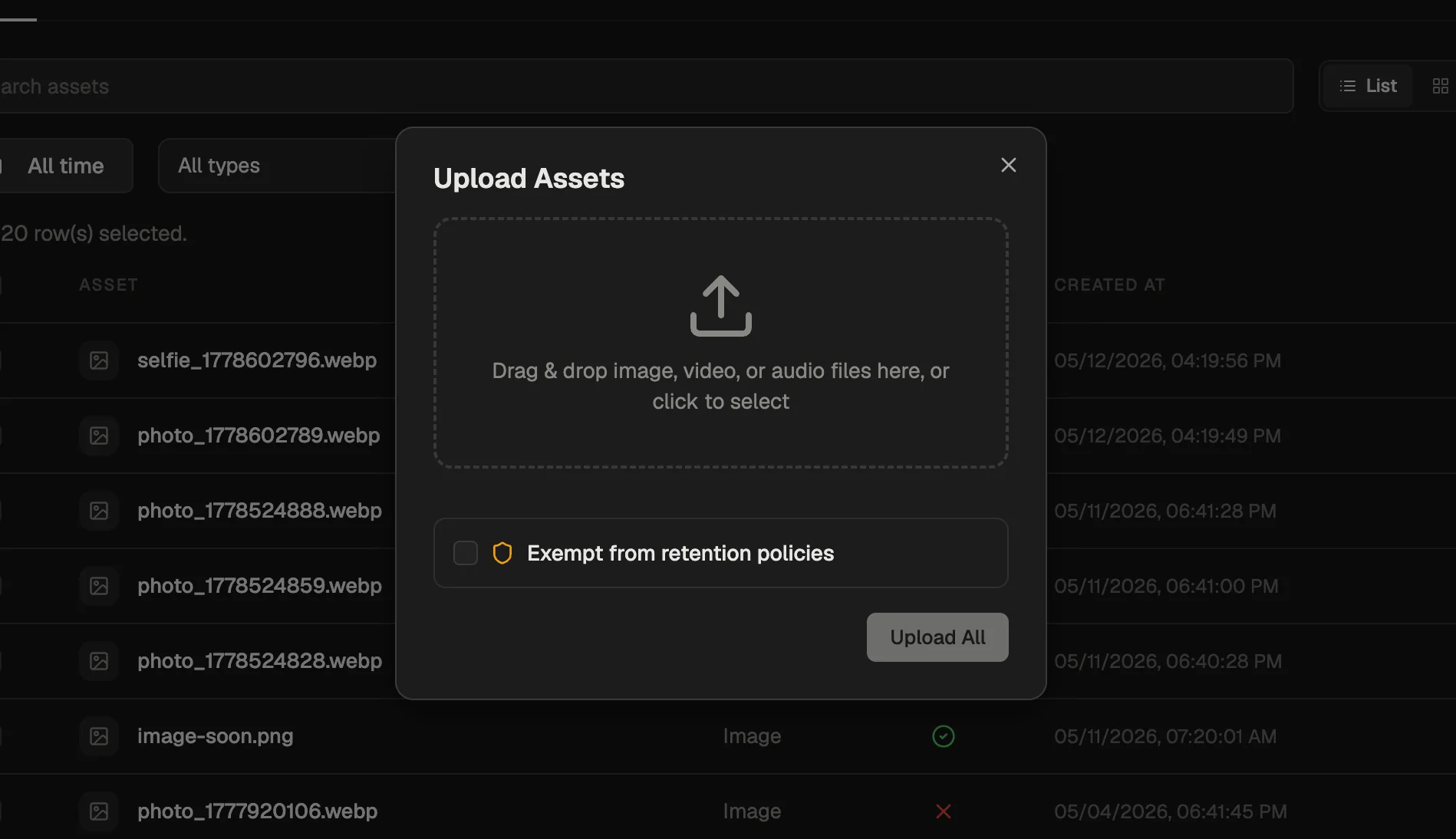 Image hosting dashboard showing a direct URL for the uploaded GIF banner
Good options:
- ImgBB is a free image host that gives direct URLs and supports GIFs
- Your own VPS or web server if you already have one
- Fivemanage if you use it for in-game media. You can upload files through their dashboard and use the direct URL it gives you.
Do not use Discord image links. Discord changed their policy and image links expire or break outside of Discord. Imgur direct linking also stopped working inside FiveM. Stick with a real image host that gives a permanent direct URL.
After uploading, copy the direct image URL. Test it by pasting it in a new browser tab. The GIF should load and play on its own. If you see a webpage around it, that is not a direct link and FiveM will not load it.
Step 5: Add the Banner to Your server.cfg
Open your server.cfg file. Find these two lines (they might be commented out with a # at the start):
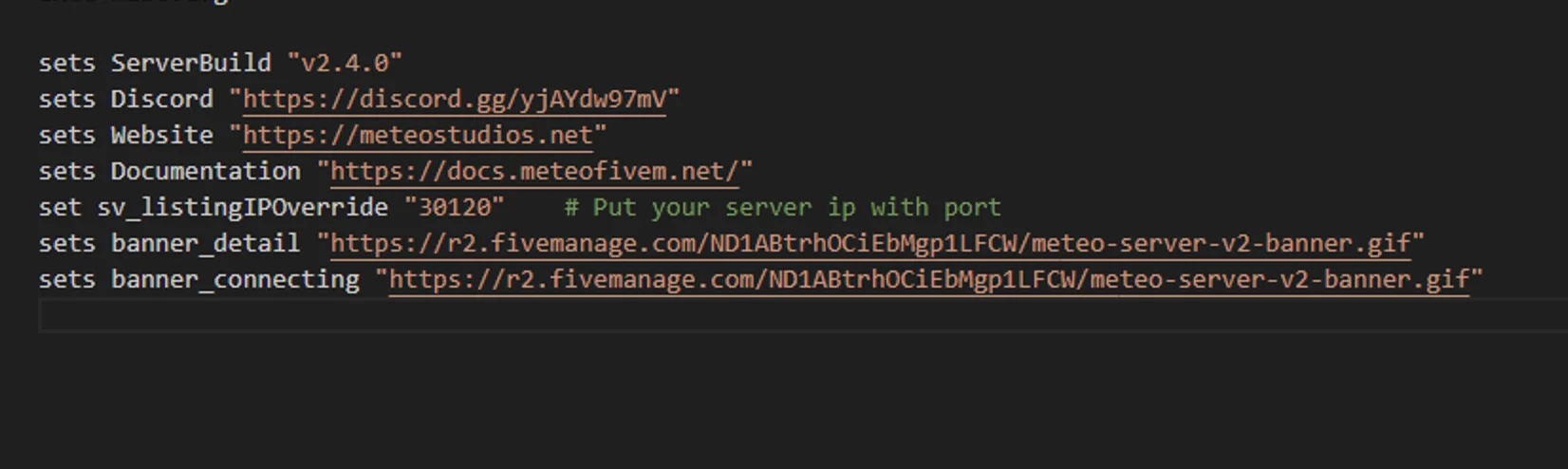 server.cfg file with sets banner_detail and sets banner_connecting lines configured
Remove the # to uncomment them. Replace the placeholder URL with your actual GIF URL. Your final lines should look like this:
You can use the same GIF for both or use different files. Most server owners use the same one for consistency.
Save the file and restart your server. The new banner should appear in your server details and on the loading screen the next time someone connects.
Step 6: Verify It Works
Find your server in the FiveM server list and check the details panel. The animated banner should be playing. If you see a broken image icon or the old banner:
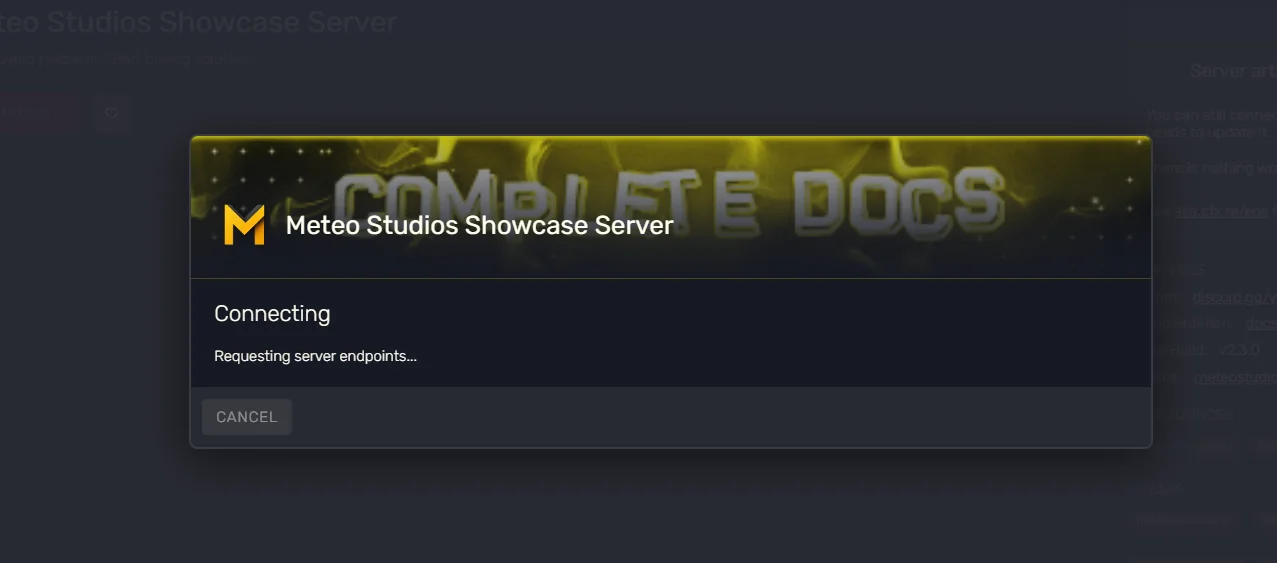 FiveM server details panel showing the animated banner playing in the server list
- Wait a few minutes. FiveM caches banners and may take time to refresh
- Double-check the URL in your
server.cfgloads in a browser - Make sure both lines are not commented out
- Confirm the file is actually a valid GIF and under any size limits your host enforces
Common Issues and Fixes
Banner does not show up at all. The URL is wrong, the lines are still commented out, or the server did not fully restart. Check those three things first.
GIF is not animating, only shows first frame. Some image hosts strip animation when converting files. Re-upload to a host that preserves GIFs, like ImgBB.
Banner looks pixelated. Your source file is too small or your host is compressing it. Render the banner at the recommended 1865x108 size and use a host that does not re-encode images.
Banner shows for some players, not others. This is usually a client-side cache issue. Players need to restart their FiveM client or clear cache. Not much you can do server-side.
Banner too big to upload. Compress the GIF using a tool like ezgif.com. Most FiveM-friendly hosts accept files up to 10MB which is plenty for a banner.
Want a More Advanced Banner?
Free generators are great for getting started. If you want something fully unique and built for your server brand, hire a motion graphics designer. Good places to find one:
- Fiverr has FiveM-specific banner designers in the $20-$100 range
The free Creavite templates are used by a lot of servers, so there is overlap. A custom banner from a designer makes you look more like an established server. Worth it once your server is generating consistent income.
Final Notes
A clean banner takes 10 minutes to make and the difference on your server list is real. Once your banner is up, the next step is making sure the rest of your server matches that level of polish. If you want a full premade server that comes with custom scripts, full documentation, and the kind of build quality that justifies a premium banner, check out the Meteo V2 Package. It comes with everything you need to launch a serious server.
Sources
- Creavite Animated Banner Maker
- Cfx.re Vanilla FXServer Setup Docs
- Cfx.re Connecting Banner Tutorial
- Personal experience setting up banners across V1 and V2 Meteo servers
Frequently Asked Questions
The recommended FiveM banner size is 1865x108 pixels. This is the size the original cfx.re community guide recommends and what most banner generators output. Smaller sizes work but get pixelated on the server list.
Yes. Both banner_detail and banner_connecting use the same 1865x108 recommendation, so you can point both convars at one file. Only the placement differs: the details banner shows in the server list and the connecting banner shows on the loading screen while a player joins.
Yes. Static PNG and JPG banners work in banner_detail and banner_connecting. The same sets lines in your server.cfg apply. GIFs just give you animation.
No. The banner is loaded by the FiveM client, not your server. It does not affect your server performance, player count limits, or resource usage. Players with slow connections might see the banner load slightly slower but that is a client-side issue.
Yes. Creavite offers free animated banner templates with no watermark and no signup required. They have a premium section with more exclusive templates that cost a small one-time fee, but the free tier is enough for most servers.
Whenever your server changes meaningfully. New features, a brand refresh, or a major update are good reasons. Otherwise, leave it alone. Constantly changing your banner makes your server look unstable to returning players.
Three usual culprits. The lines in server.cfg are still commented out with a #. The URL is wrong or not a direct image link. Or the server did not fully restart after the change. Check all three.
Yes. sets banner_detail controls the server list image and sets banner_connecting controls the loading screen. Use different URLs in each line for two different banners. Most servers just use the same image for both.
Related posts
Have questions about this post?
Ask on Discord