How to Enable FiveM Dev Mode with a Shortcut (2026)
Enable FiveM dev mode with a custom shortcut. Access dev tools, console logs, and resmon without switching to Canary. Takes 2 minutes.
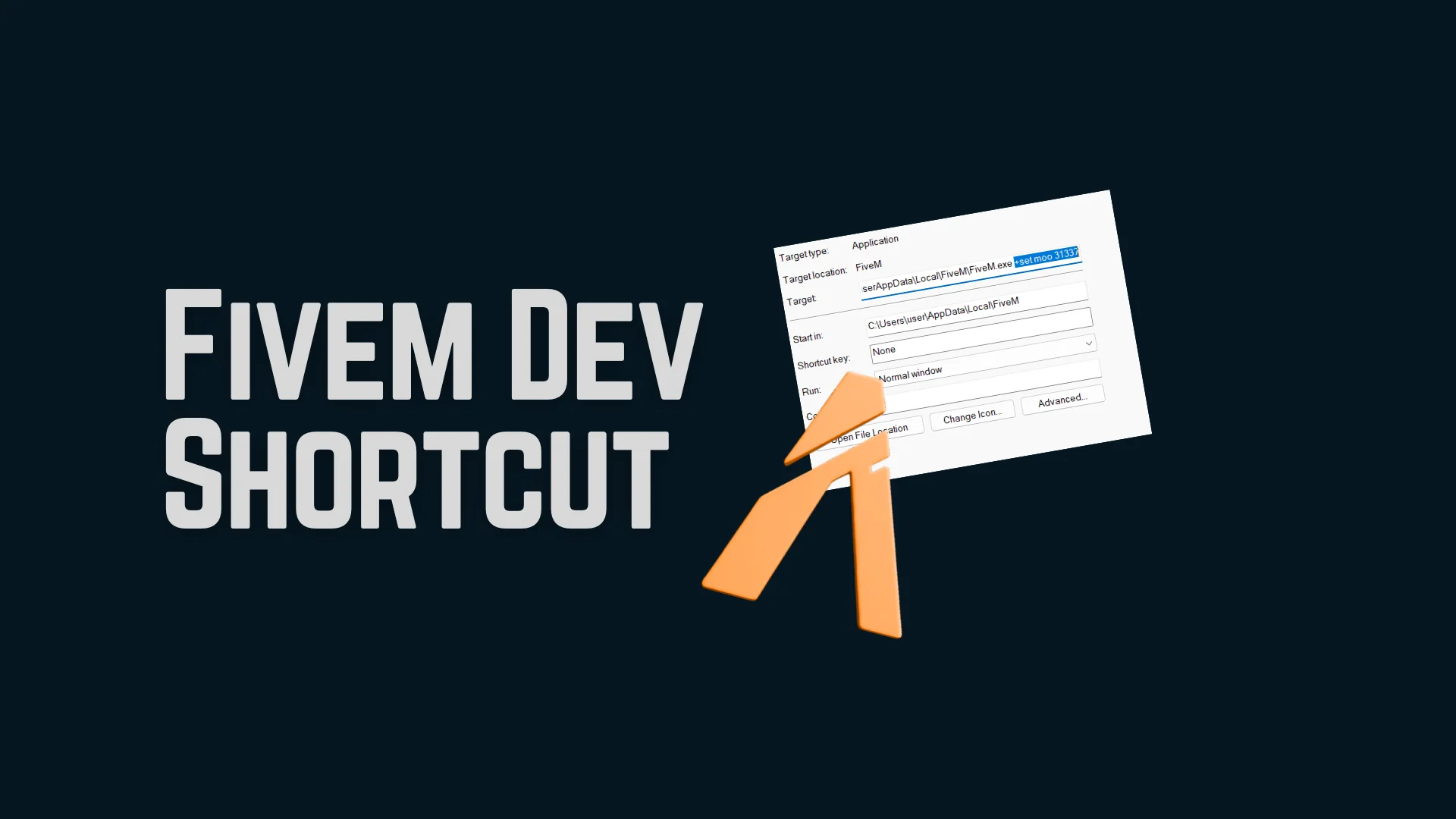
If you are developing or debugging FiveM scripts, you need access to dev tools. Most guides tell you to switch your update channel to Canary every time. There is a faster way. Make a dedicated dev shortcut and you can launch FiveM in dev mode whenever you need it.
Quick Answer: Copy your FiveM shortcut, right click it, go to Properties, and add
+set moo 31337to the end of the target path. Save. Launch this shortcut to open FiveM with dev tools enabled.
Steps
- Find your current FiveM shortcut and make a copy of it. Rename it to something like
FiveM Dev. - Right click the new shortcut and go to Properties.
- At the end of the Target path, add a space and then
+set moo 31337. It should look like this:
C:\Users\user\AppData\Local\FiveM\FiveM.exe +set moo 31337
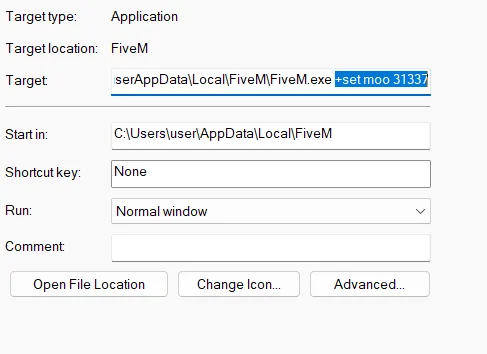 FiveM Dev shortcut Properties window showing the target path with +set moo 31337 appended
- Click Apply and OK.
Done. Launch this shortcut and you have FiveM running in dev mode. You can now use browser dev tools for NUI, resmon, advanced console logs, and the other debug stuff.
Final Notes
If you are running your own server and want a clean setup with debug-friendly scripts already in place, check out the Meteo V2 Package. 100+ custom scripts with full documentation.
Frequently Asked Questions

Keep reading
All posts


Build your server with Meteo
100+ custom scripts in one package, or pick individual scripts for your QBCore or QBox server.