How to Clear FiveM Server Cache (QBCore/QBox 2026)
MLOs broken, clothing not streaming, ghost errors after a script update? Clear your FiveM server cache. The exact 2 minute fix for QBCore and QBox.
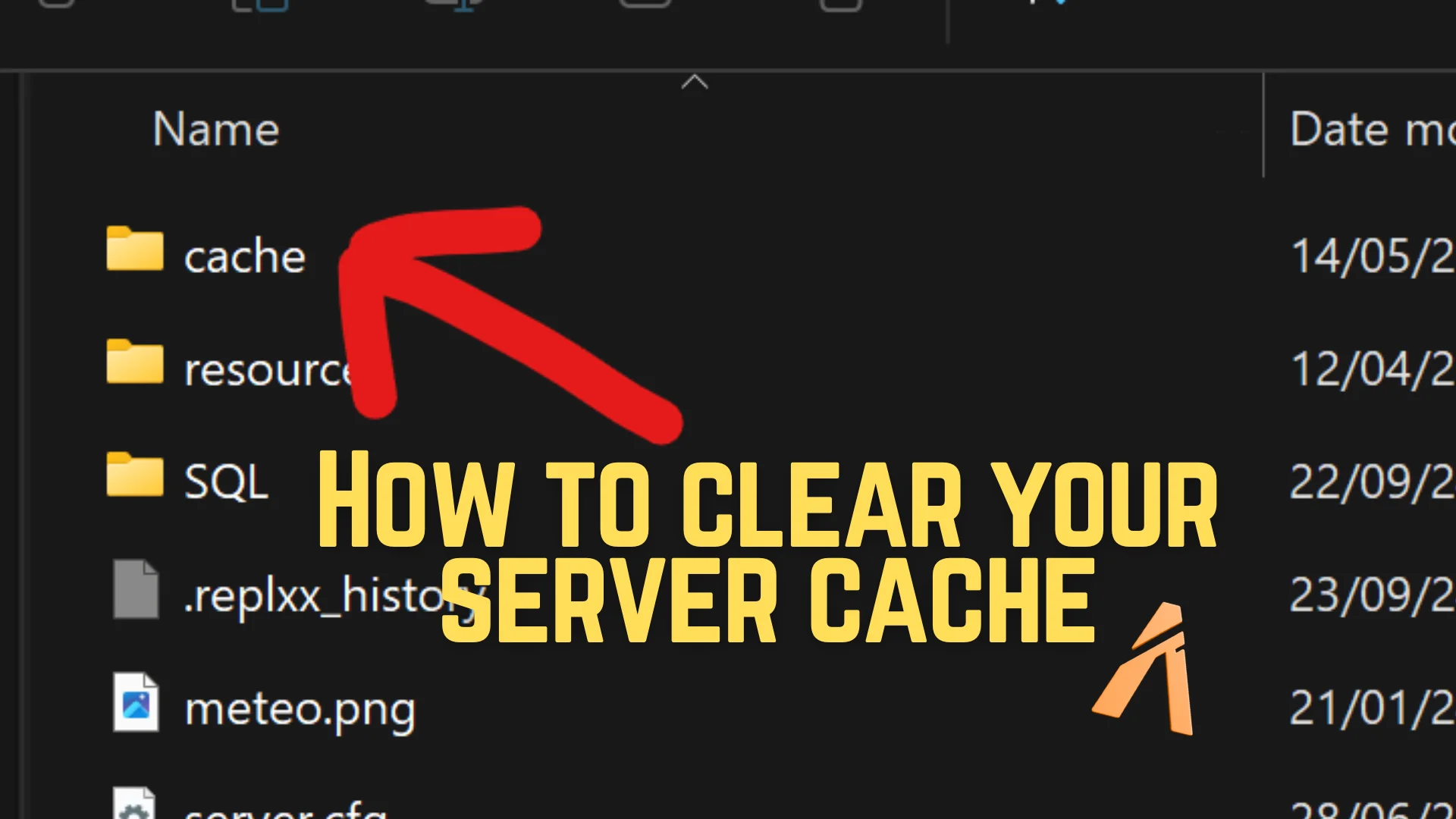
If your FiveM server has broken MLOs, clothing that will not stream, or ghost errors that do not match what is in your resources folder, the FiveM server cache is almost always the cause. Deleting the cache folder forces the server to rebuild it on next boot, which fixes most of these issues.
The whole process takes about 2 minutes. The only tricky part is finding the right folder, because the path is different for QBCore, QBox, and self-hosted setups. This guide covers all three.
Last verified on a live QBox server on April 30, 2026.
Quick Answer: To clear the FiveM server cache, stop your server fully, open your server's base folder (for txAdmin this is
QBCoreFramework_[ID].baseorQboxProject_[ID].baseinsidetxData), delete thecachefolder, and restart. The server rebuilds the cache automatically on the next boot. The whole fix takes about 2 minutes.
What Is the FiveM Server Cache?
The cache folder is a directory inside your server's base folder that stores compiled resource data, streamed assets, and temporary files used while the server is running. FxServer.exe (the main executable that runs a FiveM server) writes to this folder constantly during operation.
When something gets out of sync, like a removed resource that still loads or an MLO that conflicts with one you just deleted, the cache is usually holding onto old data. The fix is to delete the folder and let the server rebuild it from scratch.
Nothing inside the cache folder is unique. Deleting it is safe. The server recreates everything it needs from your resources folder on the next boot.
When Should You Clear Your FiveM Server Cache?
The short answer: any time something acts cached. If you removed a resource and it still shows up, or you updated a script and the old behavior is still there, the cache is stale.
Clear it when you see:
- MLO conflicts after adding or removing map objects
- Clothing or ped models not streaming correctly
- Old resources still loading after you deleted them
- Random asset errors in the console with no clear cause
- Server instability right after an artifact update or framework upgrade
If none of these match what you are seeing, the cache might not be the problem. Check your resource list and server.cfg first.
Step 1: Stop Your FiveM Server Fully
Before clearing cache, the server must be fully stopped, not just disconnected. Files are locked while FxServer.exe is running and Windows will refuse to delete them.
How you stop it depends on your setup:
- txAdmin users: Hit stop in the txAdmin panel and wait for the status to show fully offline.
- Hosting providers (ZAP, Pterodactyl, etc.): Use the stop button in your panel.
- Self-hosted: Close the FxServer console window completely.
If the delete fails later, this is almost always the reason. Check Task Manager for any leftover FxServer.exe processes and end them before continuing.
Step 2: Locate Your Server's Base Folder
The cache folder lives inside your server's base folder, but the path depends on which framework you are running.
txAdmin users (txadmin.gg)
Open your txData folder. This is the root that holds all your server data. Every framework folder lives inside txData.
QBCore framework
Inside txData, look for a folder named QBCoreFramework_[RANDOM_ID].base. The random ID is unique to your server. Example: QBCoreFramework_06AFD7.base.
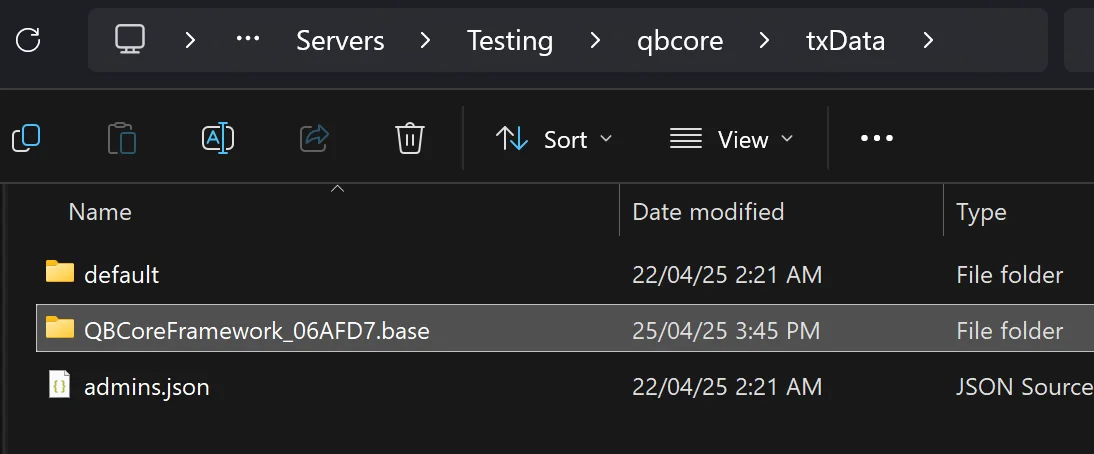 QBCore Framework folder structure showing QBCoreFramework base directory for clearing FiveM server cache
QBox framework
Inside txData, look for a folder named QboxProject_[RANDOM_ID].base. Same idea, the ID is unique to your server. Example: QboxProject_06A8F9.base.
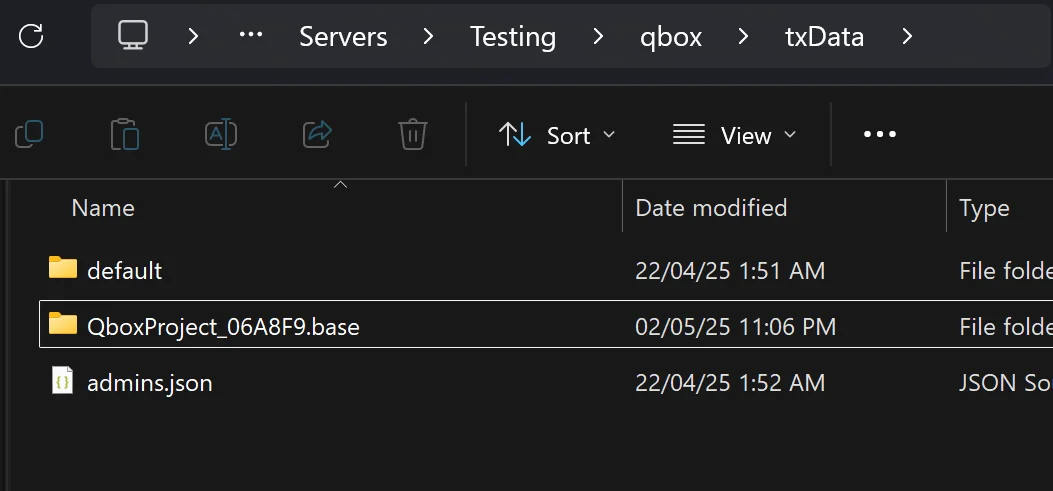 QBox Framework folder structure showing QboxProject base directory for clearing FiveM server cache
Self-hosted or custom setup
If you are not on txAdmin, your base folder is wherever you set up your server. Look for the directory that contains your resources folder and server.cfg. The cache folder sits next to those.
Step 3: Find the Cache Folder
Once you are inside your server's base folder, look for a folder named cache. That is the one. It holds all the compiled streamed assets and temporary files the server uses while running.
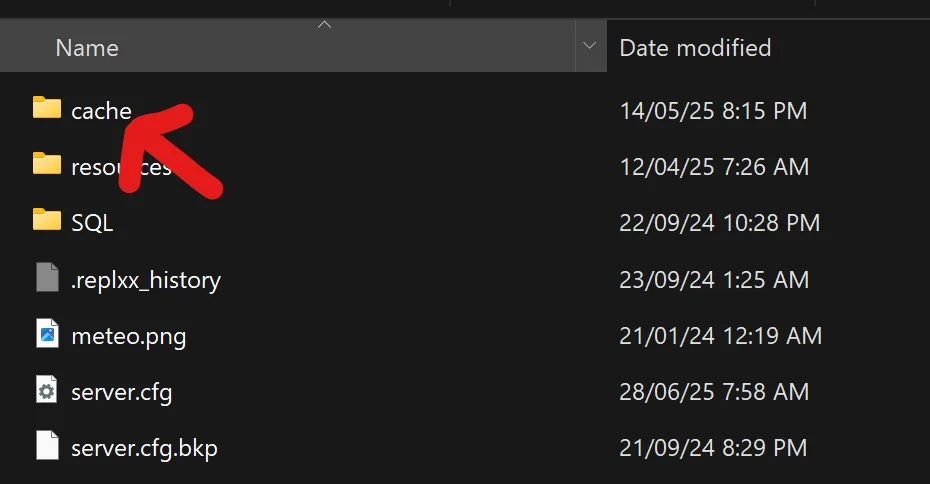 FiveM server cache folder location inside txData base directory
Do not confuse this with the client-side FiveM cache on player machines. We are only touching the server's cache folder.
Step 4: Delete the Cache Folder
With the server fully stopped, delete the whole folder.
- Right click the
cachefolder - Select Delete or press the
Deletekey - Confirm if prompted
That is it. The folder and everything inside it is gone. Nothing in the cache folder is unique, so there is no data loss. The server rebuilds it from your resources on the next boot.
Step 5: Restart Your Server and Verify
Start the server back up the same way you stopped it (txAdmin button, panel start, or FxServer.exe). On boot, the server creates a fresh cache folder and recompiles whatever it needs from your resources.
Watch the console during startup. If your resources load without errors and a test player can join and see streamed assets correctly, the cache clear worked.
If you just updated artifacts as well, this is the moment to confirm the artifacts version outdated warning is gone from the server list.
Common Issues After Clearing the FiveM Server Cache
Most problems after a cache clear fall into one of three buckets.
The Cache Folder Will Not Delete
The server is still running, or another process is holding files open. Confirm FxServer.exe is fully stopped (check Task Manager), close any file explorer windows that are inside the cache folder, and try again. Running the file manager as administrator helps if Windows is blocking on permissions.
Server Will Not Start After the Cache Clear
This almost never has anything to do with the cache itself. Check the console for the actual error. Most of the time it is a server.cfg issue, a missing resource, or a problem that was already there before you touched the cache. Read the error and fix the underlying resource.
MLOs or Clothing Still Not Loading
If clearing cache did not fix your streaming issue, the problem is the resource itself, not the cache. Common causes are corrupted .ymap or .ydd files, a missing dependency, or a load order issue in server.cfg. Reach out to whoever made the resource or check their docs.
How Often Should You Clear FiveM Server Cache?
There is no fixed schedule. Clearing the cache on a healthy server does nothing useful, since the server just rebuilds the same data on the next boot.
Clear it when you have a reason:
- Right after updating artifacts
- After a framework upgrade (QBCore or QBox version bump)
- After swapping out a streamed asset like an MLO or clothing pack
- Any time something behaves like it is cached
Frequently Asked Questions
Will clearing the FiveM server cache delete my player data or database?
No. The cache folder only holds compiled streamed assets and temporary server files. Player data lives in your MySQL or MariaDB database, which is completely separate. Deleting cache touches nothing in your database, your resources folder, or your server.cfg.
Do I need to clear the cache after every artifact update?
Yes, it is a good habit. Old cached files compiled against the previous artifact build can cause weird startup errors and broken natives. Clearing cache after an artifact update is a 30 second step that prevents an entire category of post-update bugs.
Where is the cache folder on a self-hosted FiveM server without txAdmin?
It sits in the same folder as your resources directory and server.cfg. If you launch your server with FxServer.exe directly from a folder, the cache folder is created right there alongside it. Stop the server, delete that folder, and restart.
Can I clear the FiveM cache while the server is running?
No. Windows and Linux both lock files that are in use, so the delete will either fail or skip files. Deleting active cache files mid-run can also crash the server. Always stop the server fully through txAdmin, your hosting panel, or Task Manager before clearing.
Does clearing cache fix the artifacts version outdated warning?
No. That warning is unrelated to cache. It means your FxServer build is older than what FiveM currently supports, so you need to update the artifact files themselves. See the artifacts update guide for the fix.
Is the FiveM server cache the same as the client cache players have?
No. The server cache is on your server machine and stores compiled resources for streaming. The client cache lives on each player's PC and stores downloaded assets they pull from your server. Clearing one does not affect the other.
Final Notes
Clearing the cache is one of the cheapest fixes in the FiveM toolkit. When a streaming issue does not make sense and you have ruled out obvious problems, delete the folder and reboot. Two minutes of your time and you have eliminated a whole category of bugs.
If you are running the Meteo FiveM Server or any of our scripts, the cache folder lives in the same place as any other QBox or QBCore server. The fix is identical.
Need help with other server issues? Check the rest of the Meteo blog for guides on artifacts, optimization, and setup.
Meteo runs Meteo Studios and has been building FiveM servers and scripts for QBCore and QBox since 2023. Find more guides at meteofivem.net/blog.
Sources
- FiveM Server Artifacts Update Guide
- txAdmin documentation
- Cfx.re official FiveM documentation
- Personal experience managing the Meteo FiveM Server
Frequently Asked Questions
No. The cache folder only holds compiled streamed assets and temporary server files. Player data lives in your MySQL or MariaDB database, which is completely separate. Deleting cache touches nothing in your database, your resources folder, or your server.cfg.
Yes, it is a good habit. Old cached files compiled against the previous artifact build can cause weird startup errors and broken natives. Clearing cache after an artifact update is a 30 second step that prevents an entire category of post-update bugs.
It sits in the same folder as your resources directory and server.cfg. If you launch your server with FxServer.exe directly from a folder, the cache folder is created right there alongside it. Stop the server, delete that folder, and restart.
No. Windows and Linux both lock files that are in use, so the delete will either fail or skip files. Deleting active cache files mid-run can also crash the server. Always stop the server fully through txAdmin, your hosting panel, or Task Manager before clearing.
No. That warning is unrelated to cache. It means your FxServer build is older than what FiveM currently supports, so you need to update the artifact files themselves. See the artifacts update guide for the fix.
No. The server cache is on your server machine and stores compiled resources for streaming. The client cache lives on each player's PC and stores downloaded assets they pull from your server. Clearing one does not affect the other.
Related posts


Have questions about this post?
Ask on Discord